

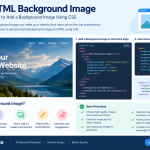

An HTML background image is a useful way to make a website visually appealing and engaging. Background images can improve the appearance of website headers, landing pages, banners, and content sections. Whether you are building a business website, portfolio, or online store, using background images correctly can help create a professional design.
HTML works with CSS to display and style background images. The CSS background-image property allows developers to add images to different elements and customize their appearance.
How to Add a Background Image in HTML
The most common way to add a background image is by using the CSS background-image property. You can apply it to the entire webpage or a specific section.
Here is a simple example:
<!DOCTYPE html>
<html>
<head>
  <title>HTML Background Image</title>
  <style>
    body {
      background-image: url('background.jpg');
      background-size: cover;
      background-position: center;
      background-repeat: no-repeat;
    }
  </style>
</head>
<body>
  <h1>Welcome to Our Website</h1>
  <p>Explore our services and solutions.</p>
</body>
</html>
In this example, background-image specifies the image file, background-size: cover scales it to cover the available area, and background-position: center keeps the image centered. The background-repeat: no-repeat property prevents the image from repeating. <Cite refs={["turn662649search0","turn662649search9"]}/>
How to Add a Background Image to a Specific Section
You can also add a background image to a particular section instead of the entire webpage. This approach is useful for hero banners, promotional areas, and service sections.
<section class="hero">
  <h1>Grow Your Business Online</h1>
  <p>Discover professional web design solutions.</p>
</section>
.hero {
background-image: url('hero-image.jpg');
background-size: cover;
background-position: center;
background-repeat: no-repeat;
padding: 100px 20px;
color: white;
text-align: center;
}This technique creates a visually engaging section while keeping the rest of the webpage separate and easy to style.
Best Practices for HTML Background Images
Follow these best practices to make background images effective:
-
Choose suitable images: Select high-quality images that match your website's purpose and brand identity.
-
Optimize image size: Compress image files to improve loading speed and website performance.
-
Use responsive design: Test background images on mobile phones, tablets, and desktop screens.
-
Maintain text readability: Use an overlay or suitable background color when text appears over an image.
-
Avoid unnecessary repetition: Use
background-repeat: no-repeatwhen a single image is preferred. -
Consider accessibility: Background images are best for decoration. Provide meaningful HTML image alternatives when an image communicates important information. <Cite refs={["turn662649search4","turn662649search0"]}/>
Common Mistakes to Avoid
Some common mistakes include using incorrect image paths, choosing oversized image files, ignoring mobile layouts, and placing text over images with poor contrast. Always check that your image loads correctly and that important content remains readable across different screen sizes.
Conclusion
Using an HTML background image with CSS is a simple way to improve website design and create attractive page sections. By applying properties such as background-image, background-size, and background-position, you can build visually appealing and responsive layouts.
At Digital Addex, we help businesses create professional, user-friendly websites with modern design and development techniques. If you want to improve your website's appearance, explore our web design and website development services to build an engaging online presence.